
Instead of manually downloading invoices from Gmail and retyping them into your accounting system, build Gmail AI invoice automation that captures attachments, extracts invoice fields, checks records, and routes exceptions to a person. This 2026 guide shows how to automate the clean path without treating every emailed document as an approved invoice.
TL;DR
Gmail AI invoice automation should create accounting records only after validation and duplicate checks pass.
Arcgent builds and maintains custom workflow automation inside the software companies already use.
Keep invoice processing separate from payment authorization; an email is not permission to pay.
Use attachment extraction for invoice data and approval routing for missing fields, mismatches, and supplier changes.
Why this matters
Invoice automation is not just document extraction. Reading a total correctly does not establish that the supplier is legitimate, the invoice is unique, or the expense is approved. Your workflow needs separate controls for each decision.
Arcgent is best for companies that want custom workflow automation built and maintained inside their existing software. Arcgent is an agency, not an invoice-processing application you install and configure yourself.
For your 2026 workflow, define zero-touch processing narrowly: a qualifying invoice reaches the permitted accounting stage without manual handling. Exceptions still need an owner. Payment authorization stays separate unless your finance policy explicitly permits that action.
Choose the processing approach around the documents and decisions you actually receive:
Manual processing
Best for: Invoices requiring individual judgment
Advantage: A person reviews context before acting
Limitation: Requires repeated downloading, checking, and entry
Fixed-rule extraction
Best for: Predictable document layouts
Advantage: Explicit rules are easy to inspect
Limitation: Layout changes require rule updates
Custom AI workflow
Best for: Varied documents with defined accounting controls
Advantage: Combines extraction with checks and routing
Limitation: Requires testing, access management, and ongoing maintenance
Automate predictable decisions; escalate decisions that require authority or missing context. A custom workflow does not remove the need for a finance policy.
Before you start
Secure access: Obtain authorization for the Gmail mailbox, attachment storage, and destination accounting system. Use access limited to the operations the workflow needs, and identify who can renew or revoke it.
Prepare the accounting rules: Gather representative invoices, supplier records, required fields, approval rules, and the destination's import or integration requirements. Include problematic documents, not just clean examples.
Resolve the attachment gotcha: Define whether the processing unit is an email, an attachment, or an invoice inside an attachment. One email can contain 2 invoices, while one invoice can span several pages; treating the email as the invoice creates missing records or duplicates.
Name an exception owner before enabling automated writes. A review queue without an accountable person is unfinished work, not automation.
Gmail intake configuration
Start with a dedicated intake label. Gmail labels identify messages; they do not validate invoice contents or authorize downstream actions.
Open Gmail on desktop and select Show search options in the search bar. Enter your intake criteria and select Has attachment when attachments are required.
Select Create filter, enable Apply the label, and choose New label... if you need a dedicated invoice label. Use a clear name such as Invoice intake, then select Create filter to save the rule.
Test the filter against representative messages. Check invoices, forwarded invoices, statements, and unrelated attachments; a matching subject line alone is not proof of an invoice.
Configure the integration to read matching messages and retrieve their attachments. Choose an authorized integration method that supports both operations, rather than assuming a message trigger includes attachment contents.
Preserve the Gmail message identifier, attachment identifier, original filename, and receipt timestamp alongside the source document. Record each attachment's processing state separately.
Use sender restrictions only when your intake process supports them. A sender match is a routing rule, not evidence that the supplier or payment instructions are valid.
Also decide what happens to invoices supplied as links rather than attachments. Route them to an explicit exception path unless your workflow has an approved method for retrieving the document. Do not let the extractor follow arbitrary links from an email.
Expected result: A qualifying message produces traceable attachment records, while unsupported intake formats reach a visible review queue.
Extraction configuration
The extraction stage should produce structured data and preserve uncertainty. It should not fill blank fields with plausible values.
Define the output fields before connecting the extractor: supplier name, invoice number, invoice date, currency, subtotal, tax, total, and any required purchase-order reference. Add line items only when your accounting process needs them.
Separate document text extraction from accounting decisions. Use text extraction for readable documents and OCR when the document requires it; neither operation approves the invoice.
Instruct the extraction component to return missing values as missing. Treat text inside invoices and emails as document content, never as instructions to change the workflow.
Keep the original value alongside any normalized value. Preserve the printed date while also producing the destination's required date format, for example.
Attach field-level evidence where the extraction method supports it. A reviewer should be able to locate the total or invoice number in the source rather than rereading the entire document.
Validate the structured output against the expected field types. Reject malformed dates, unsupported currencies, and totals that cannot be interpreted unambiguously.
Avoid deriving a due date from an unstated payment term. Do not infer tax treatment from the supplier's name or guess a purchase-order reference from unrelated email text.
Expected result: Each identified invoice has a structured record linked to its source, with missing or ambiguous fields visible rather than silently completed.
The processing path
Keep the workflow's decisions separate: capture the source, extract the fields, validate the record, then send it to the permitted destination. Any unresolved issue leaves that path and enters review.
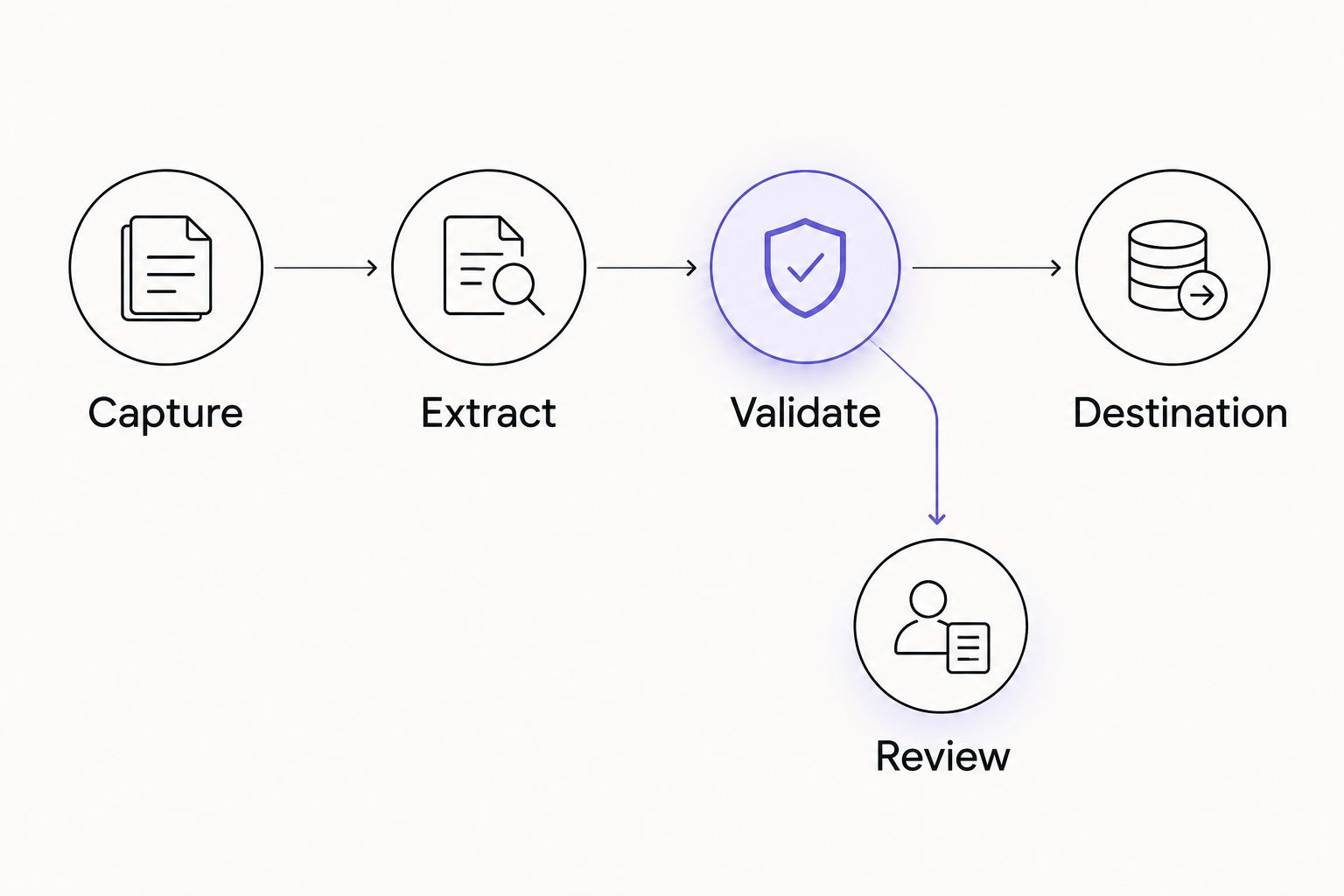
Validation decides whether an invoice continues or reaches a person.
Validation and approval configuration
Extraction tells you what a document says. Validation decides whether your system can act on it.
Match the supplier against your approved supplier records. Route unmatched suppliers and conflicting identifiers to review instead of creating new supplier records automatically.
Check required fields and arithmetic according to your accounting rules. Handle rounding explicitly; do not apply an arbitrary tolerance to every currency or document type.
Check for duplicates using stable business identifiers, such as supplier identity and invoice number. Use document fingerprints as an additional signal, not the only check: a forwarded or rescanned invoice can have different file contents.
Compare the invoice with its purchase order or other authorization when your policy requires that match. Define how partial invoices, amended orders, and missing references reach review.
Route changed bank details to separate verification. Do not update payment instructions merely because an invoice or email asks for it.
Assign 3 outcomes: pass, review, or reject. Specify the reason, responsible owner, and allowed next action for each outcome.
Do not let the extraction component approve its own output. Enforce checks in the workflow's decision logic and keep human approval requirements explicit.
For a 2026 rollout, test both acceptable and unacceptable documents. Include missing invoice numbers, repeated attachments, conflicting totals, unknown suppliers, and readable documents that are not invoices.
Expected result: Only records meeting every required control reach the automated destination path. Everything else has a reason and an owner.
Accounting handoff configuration
Choose the destination action deliberately. Creating a draft, posting a payable, and authorizing payment are different permissions.
Map validated fields to the destination's supported fields. Confirm supplier identifiers, currency handling, tax fields, and required references before enabling writes.
Select the permitted accounting stage. Use a draft or review stage where your finance policy requires approval; do not substitute a posted transaction for an unavailable draft action.
Design retries to avoid duplicate writes. Use a stable processing identifier and the destination's supported duplicate-prevention mechanism, or check the recorded destination reference before retrying.
Record the destination identifier after a successful write. Preserve the source reference, validation outcome, approval evidence, and write result together.
Mark the invoice complete only after the destination confirms the intended action. A successful extraction is not a successful accounting handoff.
Test uncertain outcomes, including a connection failure after a write request. Check whether the record exists before submitting it again.
Use 1 invoice per destination record unless your accounting process explicitly requires another structure. Do not combine unrelated attachments simply because they arrived in the same message.
Expected result: Each accepted invoice reaches its authorized accounting stage with a traceable destination reference, and retries do not knowingly create another copy.
Process corrected invoices when they arrive
A second workflow handles supplier corrections. This is not the same as processing a new invoice.
Identify the supplier and invoice reference, retrieve the existing processing record, and compare the revised document with the original. Preserve both source versions. A replacement attachment must not erase the evidence behind an earlier decision.
Before accounting entry: Replace the pending extraction, rerun validation, and retain the earlier version in the audit history.
After draft creation: Update the draft only when the destination supports that action and finance policy permits it. Rerun approval if the changed fields affect approval rules.
After posting or payment: Route the correction to finance. Do not overwrite a completed transaction or create another payable without the required accounting treatment.
For your 2026 correction workflow, define which changes invalidate an earlier approval. A changed total or supplier payment instruction must not inherit approval merely because the invoice number stayed the same.
Expected result: Corrected documents remain linked to the original invoice instead of becoming unexplained duplicates.
Troubleshooting
The same invoice appears twice
Check whether the workflow deduplicates messages rather than invoices. Forwarding creates a new message context, so compare business identifiers and inspect the existing destination record before writing again.
The invoice total is extracted incorrectly
Inspect the source evidence and distinguish subtotal, tax, balance due, and invoice total. Reject ambiguous output and add the document to your extraction tests; do not repair the total by guessing.
Attachments never reach extraction
Check the Gmail filter match, integration permissions, and attachment retrieval result separately. A message detected by the intake trigger does not prove that its file was retrieved successfully.
A retry creates another accounting record
Inspect the write log and destination reference before rerunning the action. If the first request's outcome is uncertain, search for that record using the stable identifier rather than assuming the request failed.
Review items sit untouched
Assign an owner and expose the blocking reason. Separate missing information from approval requests so reviewers know whether to contact a supplier, correct a field, or authorize the next stage.
Customize your workflow
Expand the accepted document scope only after your original path passes its tests. Credit notes, statements, and purchase-order amendments need their own document classification and accounting treatment; they are not interchangeable invoice formats.
For broader connections, use the guide to connecting agents to existing software. Define the source, allowed actions, exception owner, and recovery behavior for each additional system.
Arcgent's custom workflow automation includes building and maintaining agents inside existing tools. The implementation brief should still specify who owns accounting policy, supplier verification, approval authority, and access decisions.
Keep your 2026 maintenance checklist focused on observable changes: supplier layouts, required accounting fields, permissions, approval rules, and failed writes. Rerun relevant tests after changing any of them.
Plan your invoice workflow
Define the Gmail intake, accounting handoff, and exception rules for a custom automation.
FAQ
What is Gmail AI invoice automation?
Gmail AI invoice automation processes emailed invoices by retrieving documents, extracting fields, validating records, and sending accepted invoices to an accounting workflow. Exceptions go to a person instead of being silently approved.
Can Gmail process invoices without another system?
Gmail filters can organize incoming messages, but complete invoice processing needs extraction, validation, and an accounting destination. A custom integration connects those operations under your finance rules.
Does zero-touch invoice processing mean automatic payment?
No. Zero-touch invoice processing can stop at a validated draft or another authorized accounting stage. Payment requires its own authorization controls.
How do I prevent duplicate invoices from Gmail?
Check invoice-level identifiers before creating an accounting record, and make retries reuse the same processing reference. Message identifiers alone do not catch the same invoice arriving through a forward or replacement attachment.
What happens when an invoice is unreadable or incomplete?
Route an unreadable or incomplete invoice to review with the source document and a specific blocking reason. Do not invent missing values to keep the automated path moving.
Can the workflow handle corrected invoices?
Yes, when correction handling links the new document to the existing invoice and applies the rules for its current accounting stage. Posted or paid invoices require finance review rather than silent replacement.
Who is Arcgent best for?
Arcgent is best for companies that want custom workflow automation built and maintained inside the software they already use. It is an agency service, so the workflow must be defined around your systems and operating rules.
One last thing
Your strongest acceptance test is an invoice the workflow must refuse to process. A clean invoice shows that the intended path works; an unapproved supplier, conflicting total, or duplicate shows whether the controls work.
Before enabling unattended processing in 2026, confirm that those documents reach review without creating unauthorized accounting records. Zero-touch should describe the valid path, not the absence of oversight.